Mexllex
✓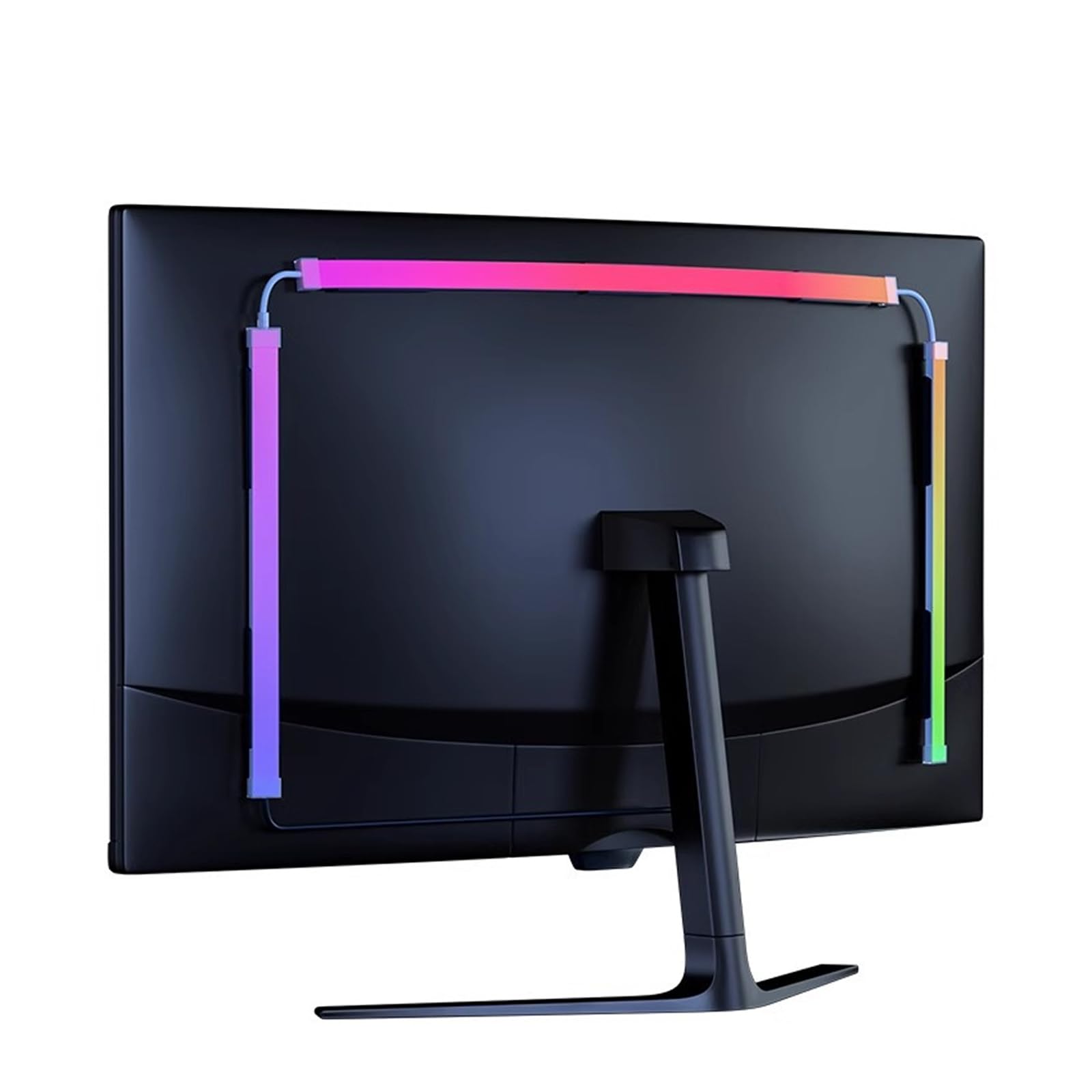
Installation instructions 1. Clean the back of the monitor (use a dry cloth or a dry paper towel to remove dust/grease, etc.). 2. Peel off the adhesive film of the light strip sections in the order: right side, top and left side. Stick them to the back of the monitor accordingly. 3. Connect the USB signal cable from the controller to the USB port on the back of the computer. Software download and installation. To enable screen light sync, you need to download and install the following application software. WINDOWS Download Link: (1)https://quiklight.robobloq.com/sync-lights System Requirements: Supports Windows 10 and above (currently does not provide stable support for Windows 7) If the device list shows "Device List", it means that the software has detected the light strip and connected to it. If the device list does not show "Device List" (or "Unknown Device") or if the system indicates that it cannot recognize the device, please unplug the USB cable connected to the computer several times. If the problem persists, go to the "Settings" button in the upper right corner and reset the software. If it still does not work, please restart your computer. If the problem persists, please contact customer service. Note: If the LED strips are in screen light sync mode, the buttons on the controller will not work (This is not device interference) Functions: It captures the colours on the screen in real time and adjusts the lighting accordingly. Responds to screen colors in a flash with minimal lag. Enjoy fluid and precise lighting that takes your visual experience to a new level. This lighting is extremely versatile. Give your RGB gaming room a fascinating light atmosphere, increase the appeal of your live stream, or turn your parties into epic events. The LED TV backlight adapts to any situation. Experience entertainment in a completely new light with our LED TV backlight. Order now and immerse yourself in a world of colours and possibilities! Parameters: Type: RGBIC colour. Colour temperature: RGB Voltage: 5V Case material: silicone. Operating temperature: -5°C to 40°C. Package includes: 1 x Light Strip. Frequently Q&A Q1: After connecting the device to the power source and the light strip, if the light strip doesn’t illuminate when pressing the controller button, does it mean there’s a malfunction with the device? A1: This situation may be due to insufficient power supply through the USB interface. We recommend trying a 5V/2A power adapter that meets the specifications to power the device. When the ROBOBLOQ software is not running, the light strip will automatically enter the ambient lighting mode when connected to the power source. Q2: When using the screen light synchronization mode, why do the colors displayed by the light strip appear opposite to the colors on the monitor screen? A2: The default design of this product assumes that it is installed facing the back of the monitor, from right to left. If you notice that the color sequence of the light strip is exactly opposite to the color positions on the monitor, it means that the light strip’s installation direction is incorrect. Please reinstall the light strip in the correct direction, starting from the other side of the screen. Q3: Why is it that in screen light sync mode, no matter which button I press on the controller, I cannot control the light strip? A3: When running in screen light sync mode, the software continuously sends sync signals to the controller. During this time, the physical buttons temporarily lose control over the light strip. To restore manual control, exit the screen light sync mode and try again. In non-screen light synchronization modes, such as color-changing or music-sync modes, you can use the controller buttons to adjust the lighting effects and modes normally. Q4: I’ve correctly connected the device, but when starting the software, still receive the prompt: “No device detected, please connect the device?” A4: For users using this product for the first time, please ensure that your computer is connected to the internet. The device may require online activation for the software to recognize it. Once activation is complete, you can continue using the device even offline. If your computer is already connected to the internet, try unplugging and re-plugging the USB cable on the PC USB port, and check if the power adapter voltage is 5V and the current output is greater than or equal to 2A. If the power conditions meet the requirements but the device still isn’t recognized, try connecting the device to a different USB port on your computer. If the issue persists, please consult customer service for assistance
Customer reviews
10 Trustpilot reviews total, with 2 shown at a time.
I wrote to Bigamart's customer support and they accompanied the process of reshipping the item until it finally arrived. I felt a genuine effort to solve the problem till it was finally solved.
The package was here in Australia from England in a few days — so quick! Something was missing and they refunded it straight away. Pretty happy with these guys.
You might also like