

IBest
✓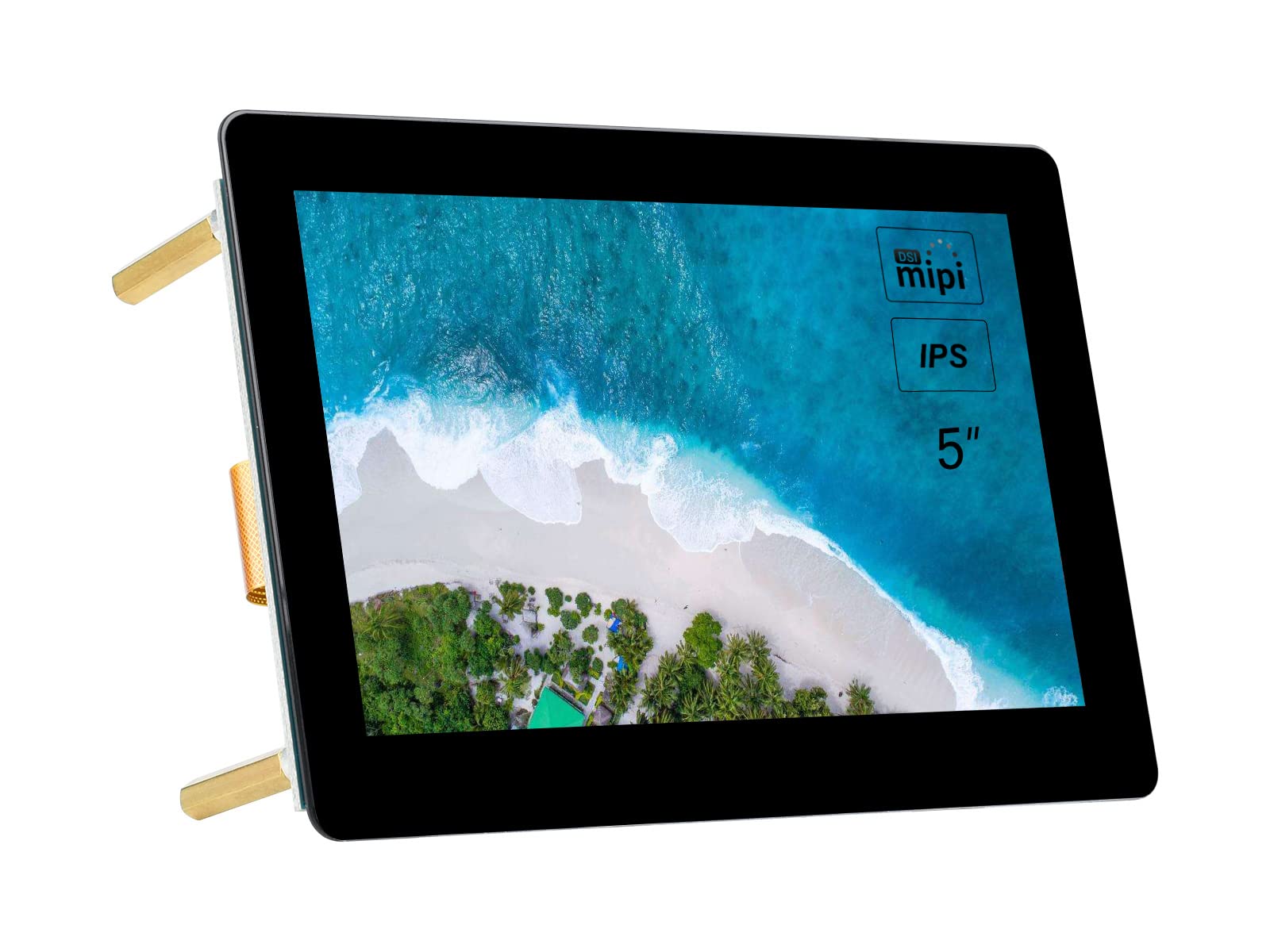
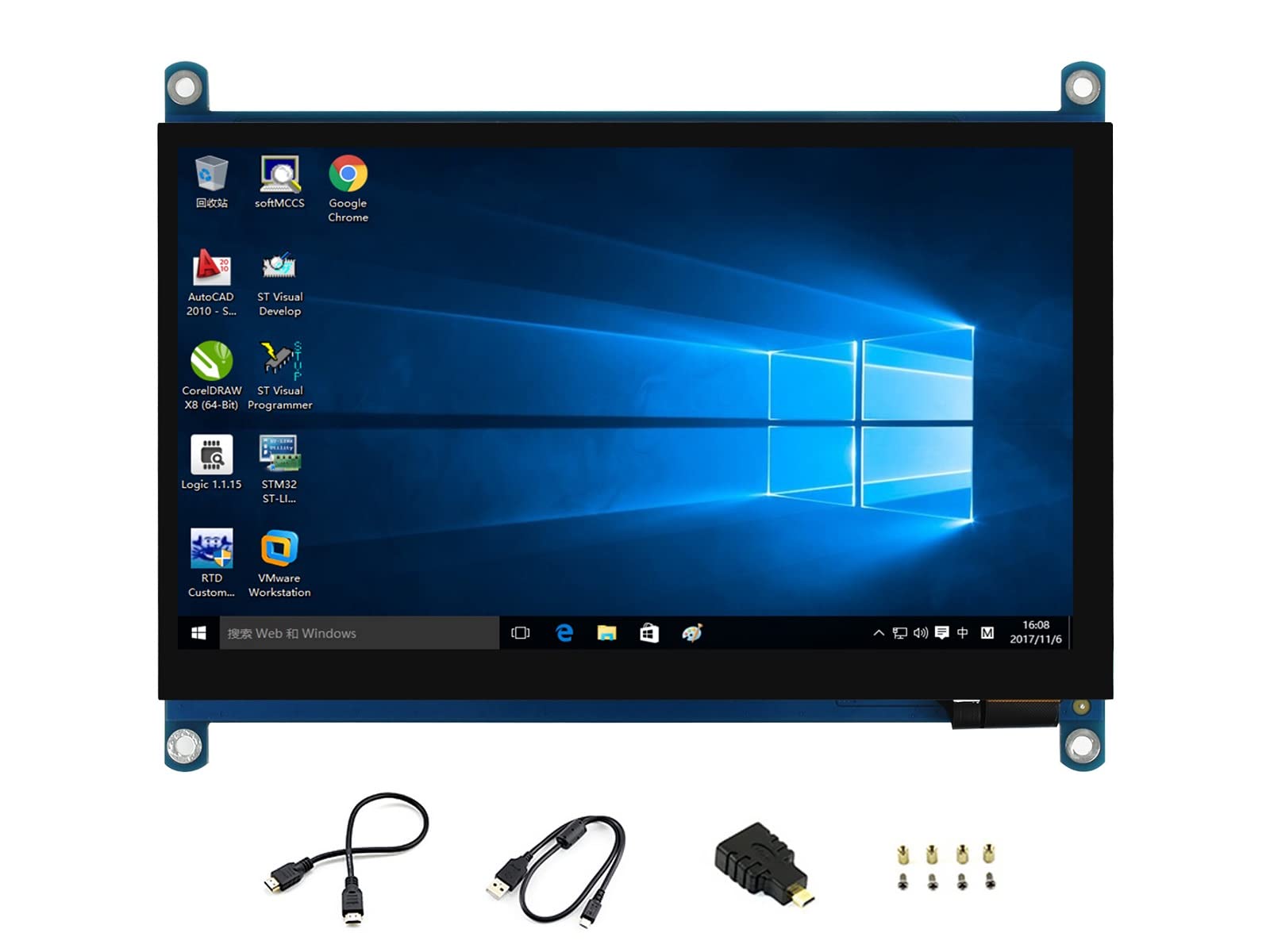
Introduction 5inch Capacitive Touch Display for Raspberry Pi, 800×480, IPS Wide Angle, MIPI DSI Interface. Features 5inch IPS screen, 800x480 hardware resolution Capacitive touch panel, support 5-point touch Tempered glass capacitive touch panel, hardness up to 6H Supports Pi 4B/3B+/3A+/3B/2B/B+/A+. Another adapter board CM-DSI-ADAPTERis required for CM3/3+/4 DSI interface, refresh rate up to 60Hz. When used with Raspberry Pi, support Raspberry Pi OS / Ubuntu / Kali and Retropie, driver free. Supports software control of backlight brightness User guide 1. Hardware connection 1) Using the FFC cable, connect the 5inch DSI LCD to the DSI port of the Raspberry Pi. 2) For easy use, you can fix the Raspberry Pi on the backside of the 5inch DSI LCD by screws. 2. Software setting Supports Raspberry Pi OS / Ubuntu / Kali and Retropie systems for Raspberry Pi. 1) Download image from the Raspberry Pi website. 2) Download the compressed file to the PC, and unzip it to get the .img file. 3) Connect the TF card to the PC, use SDFormatter software to format the TF card. 4) Open the Win32DiskImager software, select the system image downloaded in step 2, and click ‘Write’ to write the system image. 5) After the image has finished writing, save, and quit the TF card safely. 6) Power on the Raspberry Pi and wait for a few seconds until the LCD displays normally. And the touch function can also work after the system starts. 【Note】 If you are using the Buster branch system, the DSI LCD can work with Raspberry Pi directly after connecting and powering on. But if you are using the Bullseye branch system, you need to modify the config.txt Package Content 1. 5inch DSI LCD (B) x1 2. FPC 15PIN 1.0 pitch 50mm (opposite sides) x1 3. Screws pack x1
Customer reviews
10 Trustpilot reviews total, with 2 shown at a time.
I wrote to Bigamart's customer support and they accompanied the process of reshipping the item until it finally arrived. I felt a genuine effort to solve the problem till it was finally solved.
The package was here in Australia from England in a few days — so quick! Something was missing and they refunded it straight away. Pretty happy with these guys.
You might also like